

Dayforce is launching for Wave 2 communities on Sunday, March 29, 2026.
Below you’ll find important information and step-by-step instructions to help you prepare for go-live and beyond.
Quick Start:
Click on the Following Quick Start Guides to Get Started with Dayforce
Logging Into Dayforce
Using Dayforce on Your Apple Device (iOS Quick Guides)
- Updating Your Personal Information
- Updating Your Banking Information
- Checking Your Schedule
- Clocking In and Out
- Checking Your Time Sheet
- Finding Help
Using Dayforce on Your Android Device (Android Quick Guides)
- Updating Your Personal Information
- Updating Your Banking Information
- Checking Your Schedule
- Clocking In and Out
- Checking Your Time Sheet
- Finding Help
Quick Guides for Employees (Desktop Version)
Where and How to Download the Dayforce App
All Wave 2 employees will be asked to download the Dayforce App on Friday, March 27.
- Scan the QR code provided below to download the Dayforce app
- OR search for Dayforce in the Apple App Store or Google Play Store
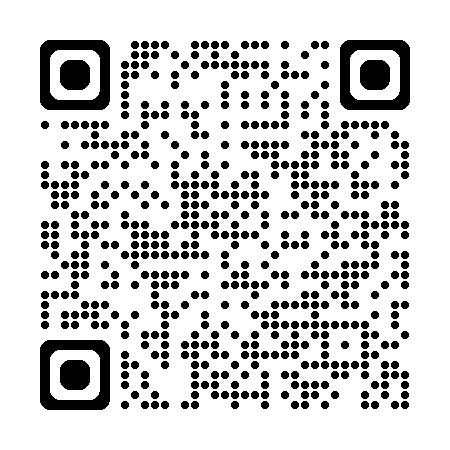
If you do not have access to a smartphone, you can clock in and out using the kiosk at your community.
Where to Locate Your Login Information
All Wave 2 employees will receive Dayforce login information via an email to the personal email address we have on file on Thursday, March 26, 2026.
The email will come from dayforcehelp@optimaliving.ca and the subject line will be “Action Required: Your Optima Dayforce Account”
If you don’t see the email, please check your junk or spam folder, or contact your admin manager or general manager for support.
If you believe the email address we have on file for you is incorrect, please notify your admin manager or manager as soon as possible.
Employees with an Optima Living Email Address
Employees with an Optima Living account will sign in to Dayforce using their existing Optima Living credentials (Single Sign-On or SSO).
All Other Employees
Employees without an Optima Living account will receive a username and temporary password in the welcome email, along with instructions to complete their first login and set a new password.
How to Get Help with Dayforce
- Check the Quick Start guides linked at the top of this page
- Ask your General Manager or Admin Manager
What You Need to Know About the First Clock In
Dayforce will launch in Wave 2 communities on Sunday, March 29, 2026.
For shifts that start on Saturday, March 28 (before Dayforce goes live):
- Do not clock in or out in Dayforce.
- If your shift continues past midnight into Sunday, March 29, all hours will still be paid through Payworks or ComVida.
- Record your entire shift using your current timesheet, as usual.
For shifts that start on Sunday, March 29 (Dayforce launch day):
- Please try your best to clock in using Dayforce.
- All shifts starting at or after 7:00 a.m. should clock in using Dayforce.
If you are unable to clock-in using Dayforce for your shift:
- Notify your admin manager or manager.
- Do not attempt to clock out at the end of your shift if you were unable to clock in.
- Your manager will clear the exception on your Dayforce timesheet.
If your shift starts on Monday, March 30 at 7:00 a.m. or later (full transition to Dayforce):
- Clocking in and out in Dayforce is now required.
- For all shifts starting at or after 7:00 a.m., please use the Dayforce app on your phone to clock in/out, or use the kiosk at your community.
Time Away from Work Requests
If you have an approved time-off request between March 29 and April 11, your Admin Manager or General Manager will ensure it is transferred to Dayforce, and your time-off will be honoured.
All time-off balances will be transferred into Dayforce. You’ll receive a notification once they’re available.
For time away from work starting on or after March 29, all requests must be submitted in Dayforce (including requests that were previously approved).
In the meantime, for any new time off requests between March 29 and April 11, please email your manager directly to submit your request.
Additional Helpful Reminders
Additional Helpful Reminders
- Dayforce time tracking is required for hourly employees only. Salaried employees do not need to clock in or out.
- We recommend logging in to Dayforce before your first scheduled shift to make sure everything looks correct.
- If you forget your password after your first login, use the Forgot Password option on the login screen or contact your admin manager or general manager for support.
Thank you for taking the time to install and learn how to use Dayforce. For any questions, please contact your general manager or admin manager.